Pumpkin Wall Hanger
 Deanna's Wooden Art
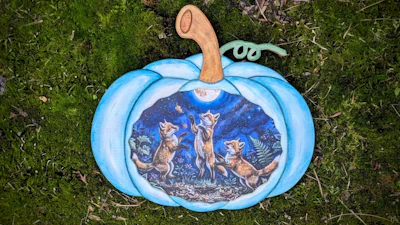
Personalize a Festive Holiday Pumpkin Wall Hanger with a Family Name or short Phrase like "Give Thanks" or "Happy Fall". Hint: Use the Ghost Magic Font for the "O" to turn into Ghosts. Note: Some fonts work better with all capital letters. Add scrapbook (or digital) paper between the two wooden layers to make your pumpkin unique and stand out! (Yes you can cut paper on your laser.) Embellish with a bow and hang with some twine. Materials list below.
UPDATE - Image Upload is now an Option!
Directions:
To Add an Image, hover curser over the actual Image on Right Panel, then click "Choose Image" and find the folder on your computer the image is in, select, and open the image.
To Download Print and Cut File - At Blue Download Button use down arrow key to locate print and cut option.

Red=Cut, Blue=Score, in SVG version Pink=Cut Paper
SEE DETAILED INSTRUCTIONS BELOW
To Import the Image Directly into Cuttle Use the Choose Image Button to Upload an Image from your Computer and then Download the template as a Print and Cut File. To access the Image, use the PDF of the Image, and/or the PDF of the Cut File and Image File Combined. You can print the Image File in any manor you choose using the tools you have. The choice is yours from printing on paper, using sublimation or a UV printer. Place the printed Image within the scored area on the backer (this area allows for a little overlap which is hidden by the top layer of wood).
How to use Print & Cut by Cuttle: https://cuttle.xyz/learn/how-to-use-export-for-print-and-cut
To use Scrapbook or Preprinted Digital Paper: Download the Print and Cut File, unzip and use the SVG File. Cut and Score the Wood with your Laser. Next, Cut your Desired Image from Scrapbook Paper or Cardstock Printed Paper on your Laser, Cutting Machine (Cricut, Silhouette, xTool M1, M2), or by hand. using the PINK lined Template in the Downloaded Pattern. (The template allows for a little overlap which is hidden by the top layer of wood). Once cut, Glue the Paper to the Backer with Mod Podge, using the score lines to line up the Paper.
Assembly:
Apply Image to inner scored area of pumpkin on backer, using Mod Podge and printed paper cardstock, sublimation, or print directly onto the backer itself with a UV Printer.
Glue the Top Piece on the Backer using the outermost score lines as a gluing guide.
*Note File has been updated 9/26/26 to include image upload as an option. The Pumpkin Image for the stem and pumpkin as seperate images is no longer included as part of the template, but is still available in the Cuttle Editor as "Paper Cut Compnant
Supplies I Used:
1/8" raw MDF - Backer
1/8" Baltic Birch - Top Layer
Paper Masking (over top layer of wood for clean cut & score)
Paint Used- Folk Art acrylic Black Cherry & Apple Barrel White
White cardstock (to print digital paper on *)
Mod Podge (to apply paper to pumpkin)
Krylon Triple Thick Glaze (to spray finished product before adding ribbon & string)
5/8" Ribbon
Twine
Digital Paper I used in photo is available at Creative Fabrica, I used one from the Retro Halloween Seamless Pattern Graphic bundle , bottom row, 4th from left. https://www.creativefabrica.com/product/retro-halloween-seamless-pattern-22/
Digital Paper I used in Template is available at Creative Fabrica I used one from Cozy Autumn Patterns Graphic - Number 13, bottom row, second from right https://www.creativefabrica.com/product/cozy-autumn-patterns-3/
Both Digital Papers were available Free at time of publication of template.
This is NOT an affiliate link.
NOTE: If using a paper insert, this project is recommended for indoor use only.
Try this template next:

Visit Deanna's Wooden Art for More Templates HERE